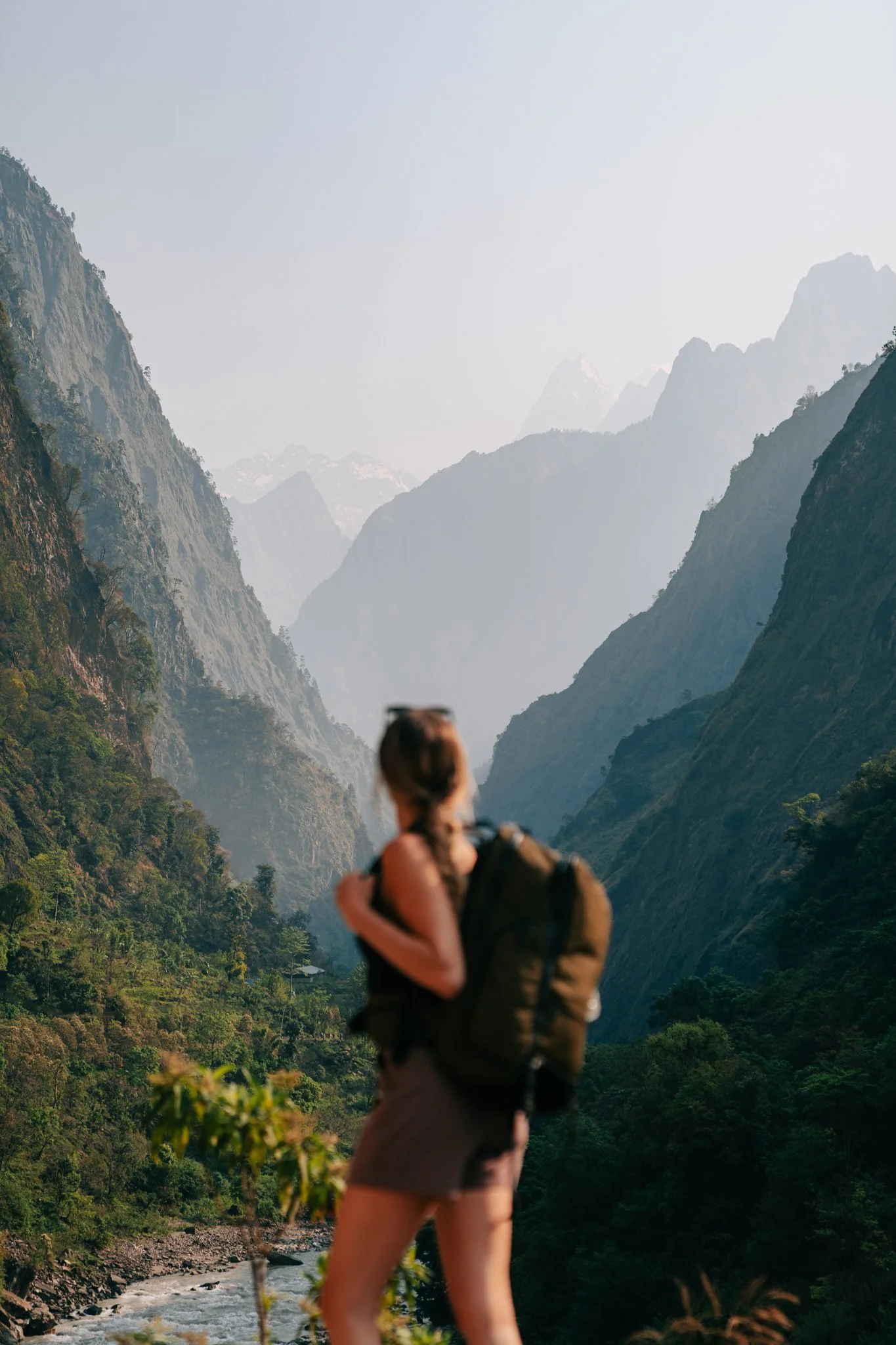
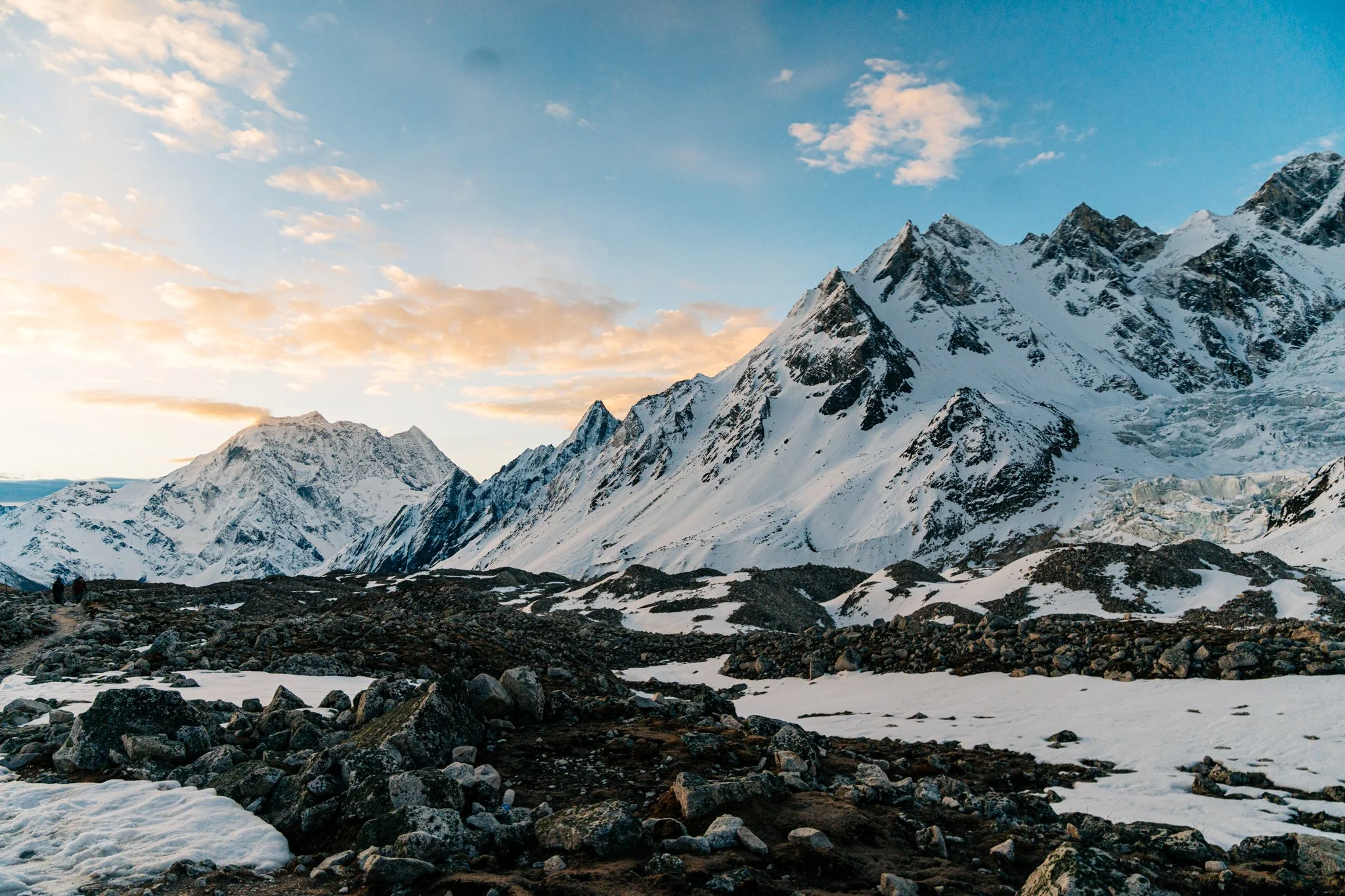
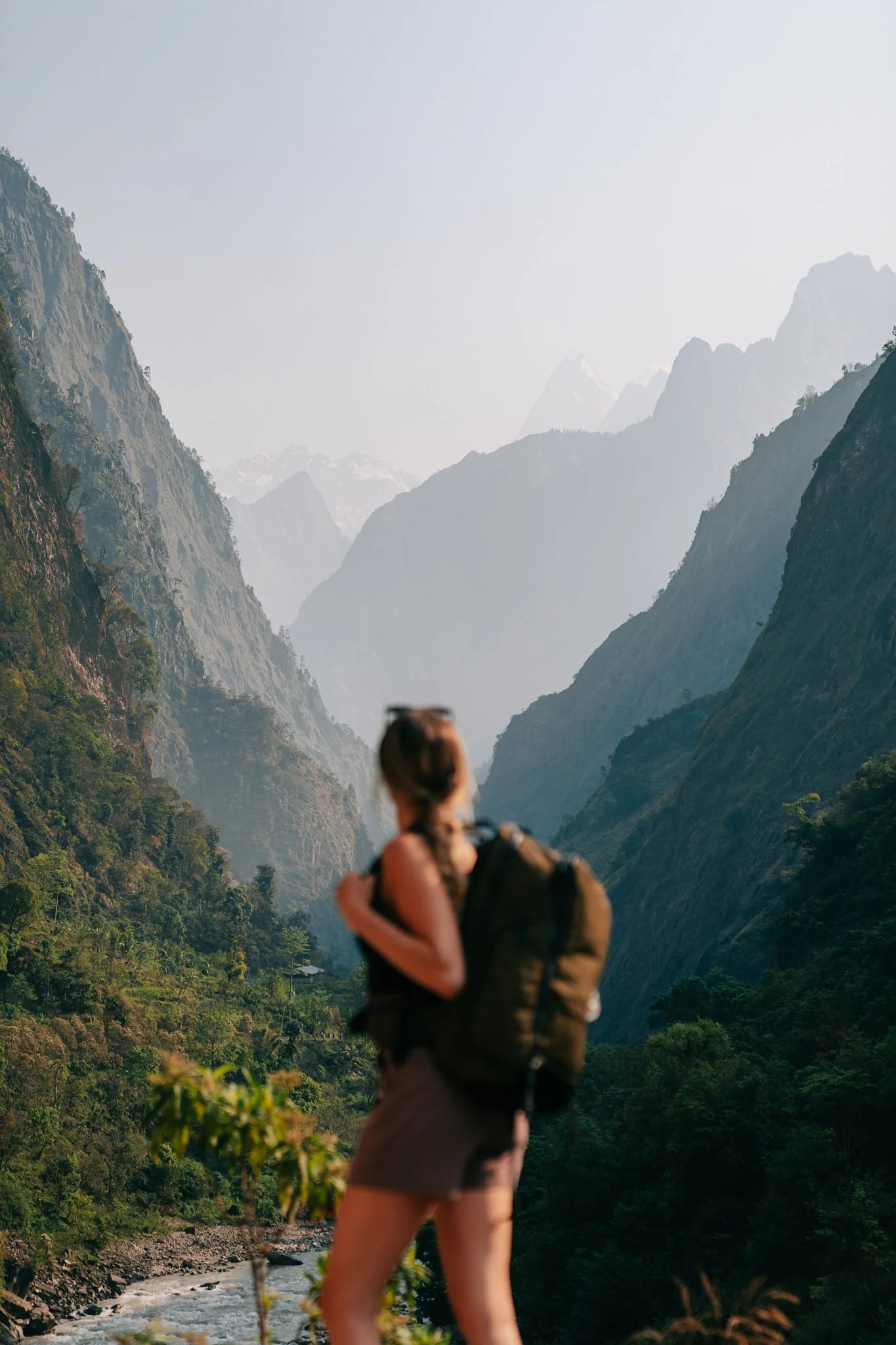
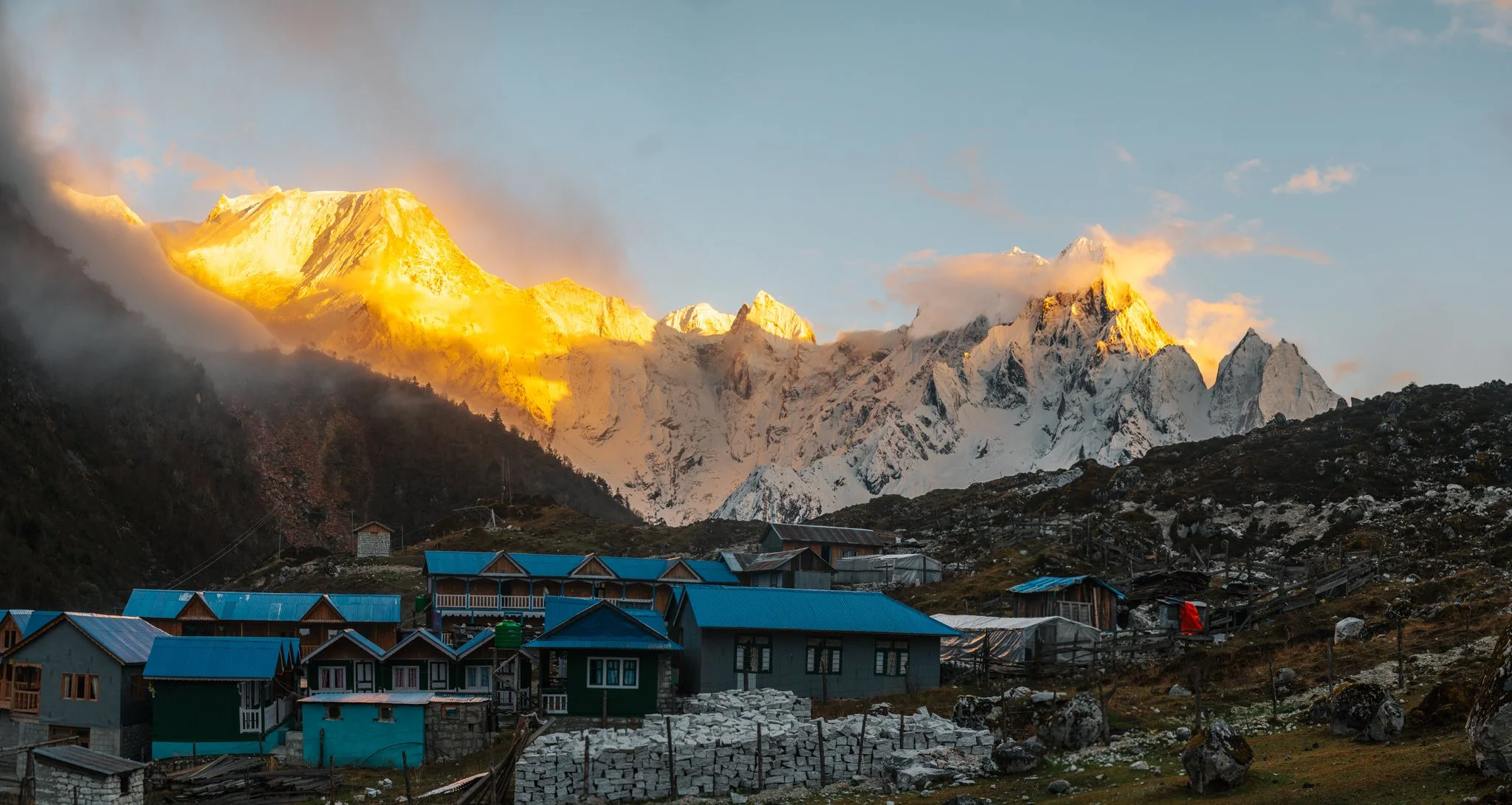
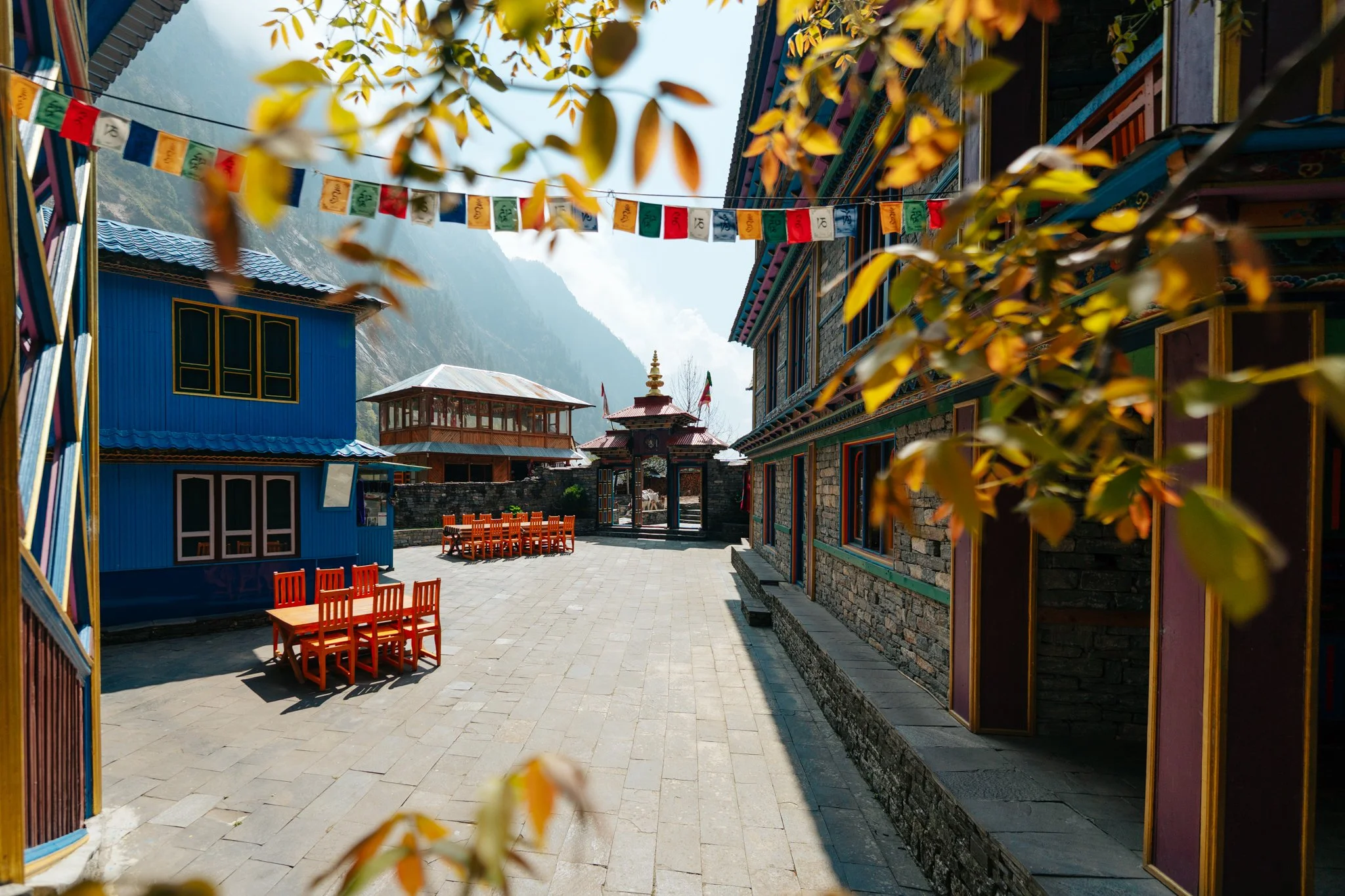
What I packed for the Manaslu Circuit — a photographer's honest gear list.
Ten days, one camera body, two lenses, and the one piece of gear I almost left at home. The real list — not the sponsored one.
On The Blog — Latest dispatches.
I want to tell you about the morning of May 4, 2026, when I stood at 5,106 meters above sea level, prayer flags whipping over my head, and cried for almost ten minutes straight in front of two Nepali men I barely knew well enough to share a meal with.
We’re going places.
One Sunday email. Where I am, what I packed, the gear I'd actually buy again, and the honest blog post that didn't fit anywhere else.
1,200
Readers
1×/wk
Tuesdays
Since'21
Going strong
Latest on YouTube
View Channel →Taiwan Travel Vlog 2026 — Lantern Festival, Alishan, Sun Moon Lake & Taipei 101
A 6-day journey through Taiwan from Taipei to Alishan to Sun Moon Lake, chasing lanterns and soaking in every moment.
Shop My Lightroom Presets
It’s summertime and you know what that means - blue hour flash cam pics! I curated the perfect LR Preset to make you glow a little extra this summer.
What This Lightroom Preset Does:
- Makes your skin look all glowy and sun-kissed ☀️
- Brightens up the background
- Teeth Whitening
- Elongates your legs
I made this for my Canon EOS M3 flash photos but it works on ANY photo from ANY device with Lightroom Mobile! One tap and BAM - goddess vibes unlocked!
The Nerdy Stuff
- Works on iPhone, Android, whatever
- Compatible with all versions of LR Mobile
- You can adjust how intense you want it
- Turn the subject mask on/off (game changer!)
DIRECTIONS
Step 1: Access Your Files
Check your email for the purchase confirmation
Download both the .DNG file and send it to your iPhone or get it to your camera roll
Step 2: Install the Preset
Open Lightroom Mobile on your iPhone
Tap the "Add Photos" icon (+ symbol)
Select the downloaded .DNG file
Once imported, tap on the .DNG photo
Tap the three dots (...) in the top right corner
Select "Create Preset" and be sure to check ALL the boxes
Name your preset "Flash Cam"
Tap "Check Mark" to save
Step 3: Using Your Preset
Open any photo in Lightroom Mobile
Tap "Presets" at the bottom of your screen
Find "Flash Cam" under "User Presets"
Tap to apply the preset to your photo
Tweak the setting to your preference
That's it! Your night photos will now have perfectly glowy colors. If you need additional help, please refer to the detailed PDF guide included with your purchase.
FOLLOW @KARLIEPLACE AND TAG IN YOUR EDIT◡̈
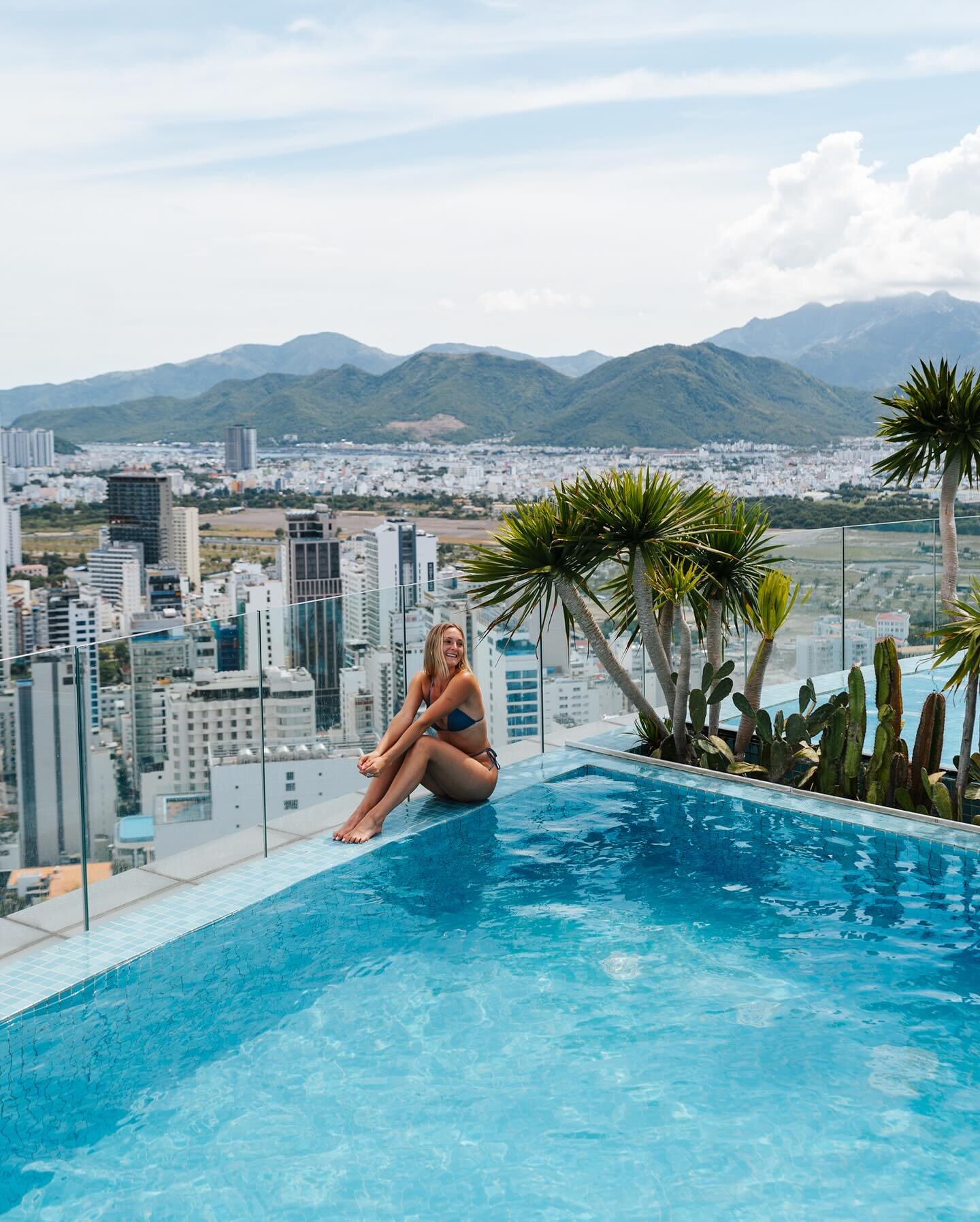
I'm SO excited to share my newest preset with you! I created this while editing all my Bali trip photos, but honestly it works magic on literally any pic you throw it on.
What This Lightroom Preset Does:
- Makes your skin look all glowy and sun-kissed ☀️
- Turns greens into these INSANE lush tones
- Has this cool "select subject" mask that makes YOU glow
- Makes blues and greens look tropical AF
I made this for my iPhone shots in Bali but it works on ANY photo from ANY device with Lightroom Mobile! One tap and BAM - paradise vibes unlocked! 🌴
The Nerdy Stuff
- Works on iPhone, Android, whatever
- Compatible with all versions of LR Mobile
- You can adjust how intense you want it
- Turn the subject mask on/off (game changer!)
DIRECTIONS
Step 1: Access Your Files
Check your email for the purchase confirmation
Download both the .DNG file and send it to your iPhone or get it to your camera roll
Step 2: Install the Preset
Open Lightroom Mobile on your iPhone
Tap the "Add Photos" icon (+ symbol)
Select the downloaded .DNG file
Once imported, tap on the .DNG photo
Tap the three dots (...) in the top right corner
Select "Create Preset"
Name your preset "Bali Babe"
Tap "Check Mark" to save
Step 3: Using Your Preset
Open any photo in Lightroom Mobile
Tap "Presets" at the bottom of your screen
Find "Bali Babe" under "User Presets"
Tap to apply the preset to your photo
Tweak the setting to your preference
That's it! Your travel photos will now have perfectly balanced colors for those gorgeous tropical getaways. If you need additional help, please refer to the detailed PDF guide included with your purchase.
FOLLOW @KARLIEPLACE AND TAG IN YOUR EDIT◡̈
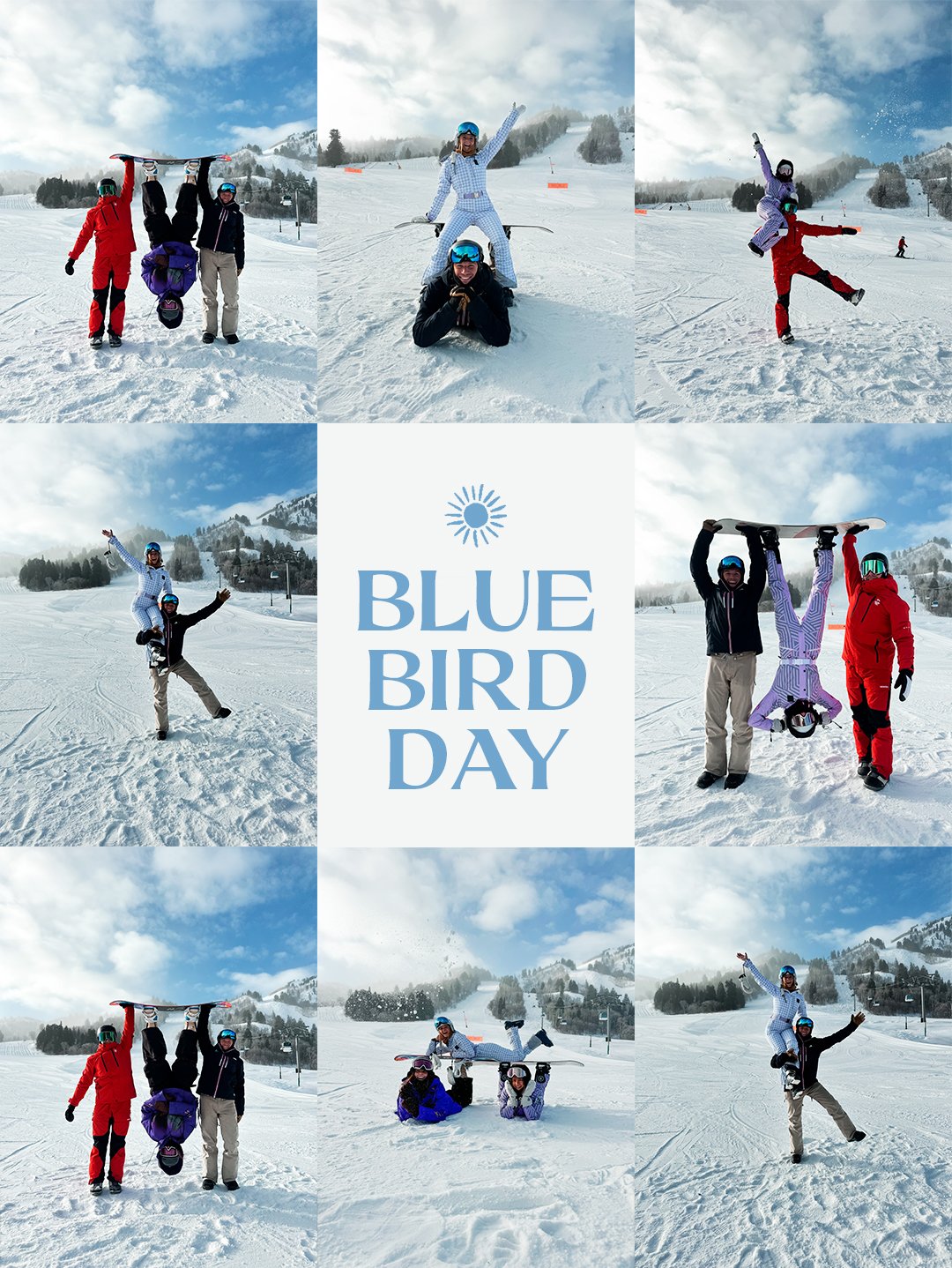
✨ Transform your winter iPhone photography with the ultimate Blue Bird Day Lightroom Mobile Preset - perfectly crafted for iPhone ski and snowboard photography! This professionally calibrated preset delivers stunning results for:
Crisp, vibrant snow scenes
Crystal-clear blue skies
Enhanced mountain landscapes
Perfect exposure in bright snow conditions
Natural skin tones for action shots
Optimized specifically for iPhone photography and Lightroom Mobile, this preset ensures professional-quality results with just one tap. Ideal for winter sports enthusiasts, mountain photographers, and outdoor adventurers looking to capture those perfect powder days and alpine moments.
Compatible with all iPhone models and Lightroom Mobile versions. Whether you're shooting fresh powder, groomed runs, or backcountry adventures, Blue Bird Day preset delivers consistent, Instagram-worthy results every time.
DIRECTIONS
Step 1: Access Your Files
Check your email for the purchase confirmation
Download both the .DNG file and send it to your iPhone or get it to your camera roll
Step 2: Install the Preset
Open Lightroom Mobile on your iPhone
Tap the "Add Photos" icon (+ symbol)
Select the downloaded .DNG file
Once imported, tap on the .DNG photo
Tap the three dots (...) in the top right corner
Select "Create Preset"
Name your preset "Blue Bird Day"
Tap "Check Mark" to save
Step 3: Using Your Preset
Open any ski photo in Lightroom Mobile
Tap "Presets" at the bottom of your screen
Find "Blue Bird Day" under "User Presets"
Tap to apply the preset to your photo
Tweak setting to your preference
That's it! Your ski photos will now have perfectly balanced colors for those gorgeous
Blue Bird Days on the mountain. If you need additional help, please refer to the detailed PDF guide included with your purchase.
FOLLOW @KARLIEPLACEAND TAG IN YOUR EDIT◡̈
Ready to put your photo editing skills to the ultimate test? My before & after video transforming a photo of a flamingo in Namibia has gone viral with over half a million views, and now it’s your turn to work your magic! There are endless ways to bring a RAW image to life, and I can’t wait to see your creative spin.
Once you download, check your email for the RAW file download, then dive in! Don’t forget to share your edit on social and tag @KarliePlace so I can check out your masterpiece. Let’s see what you've got!